
How to Enable Screen Tint on Windows 11?
Spending hours in front of a computer can cause eye fatigue, headaches, and discomfort. Windows 11 includes several built-in features designed to make your display easier on your eyes. Microsoft is also introducing a new Screen Tint feature that allows you to apply a customizable color overlay across your entire display, helping reduce eye strain during extended use.
What Is Screen Tint in Windows 11?
Screen Tint is a Windows accessibility feature that places a semi-transparent color overlay over the entire screen. Unlike Night Light, which simply reduces blue light, Screen Tint lets you choose different color tones and adjust their intensity.
The feature is designed for:
- Reducing eye strain
- Improving visual comfort
- Making prolonged screen use easier
- Creating a warmer viewing experience
- Personal preference
Unlike Color Filters, Screen Tint is not specifically intended for users with color blindness. Instead, it’s meant for general viewing comfort.
Availability
At the time of writing:
- Screen Tint is available in recent Windows 11 Insider Preview builds.
- It has not yet rolled out to every stable Windows 11 installation.
- If you don’t see the option, you can still use Night Light or Color Filters for similar results.
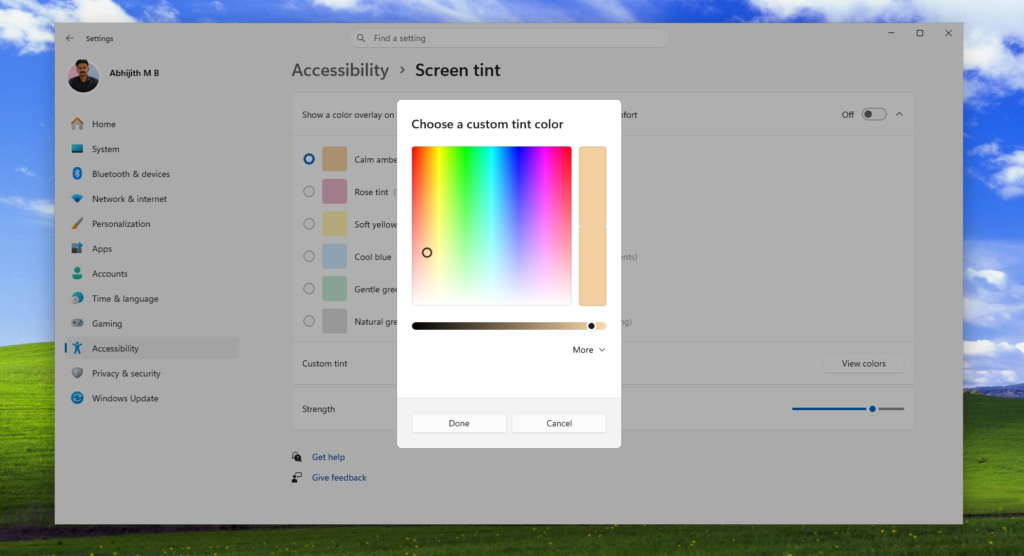
How to Enable Screen Tint
If your version of Windows supports the feature:
Step 1
Open Settings
Press:
Windows + I
Step 2
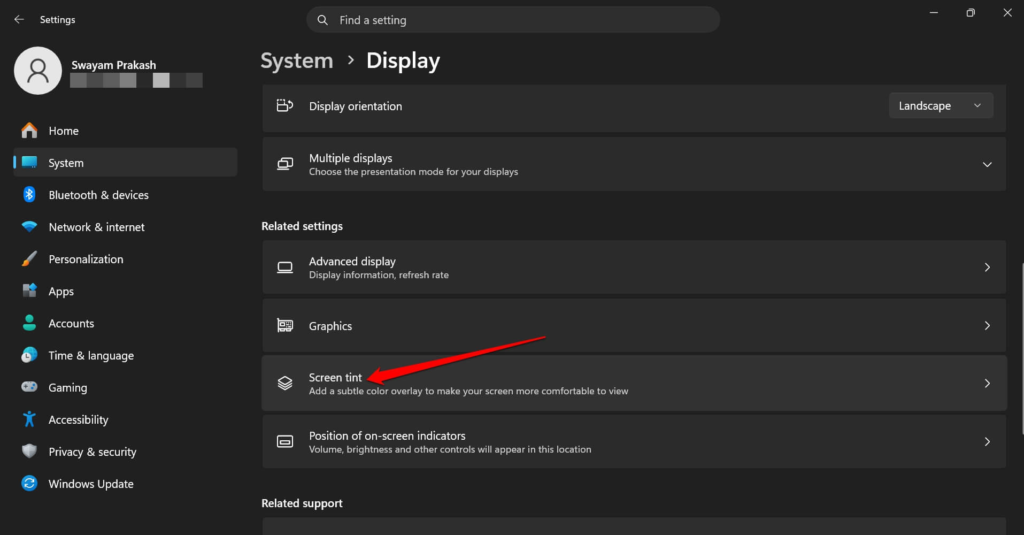
Select:
Accessibility
Step 3
Choose:
Screen Tint
Step 4
Turn on:
Enable Screen Tint
Step 5
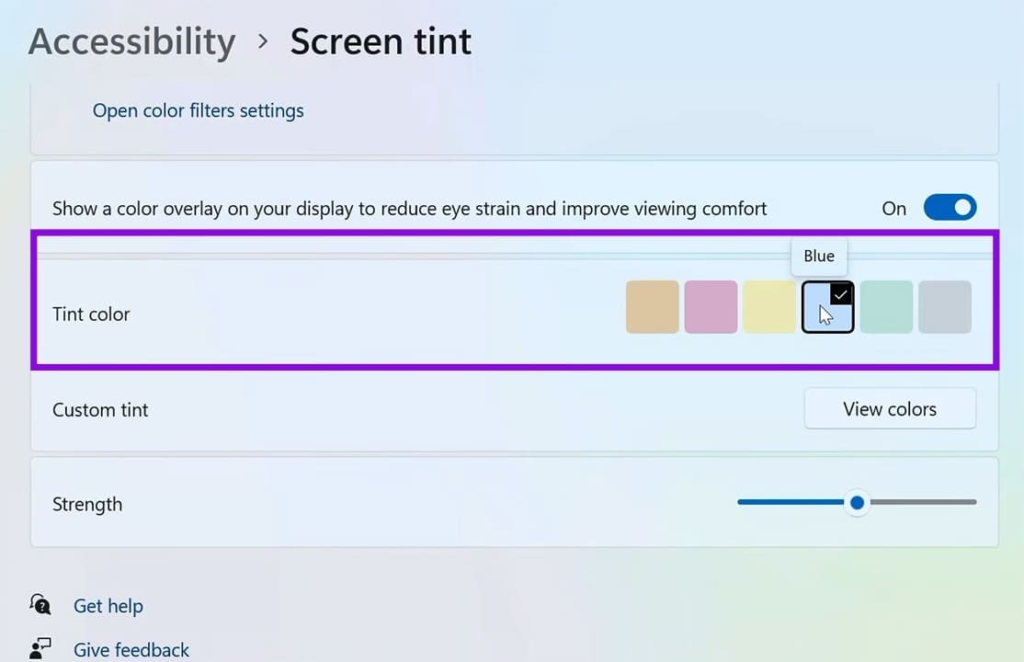
Choose a tint preset.
Windows currently offers several preset colors along with a Custom option for creating your own tint.
Step 6
Adjust the Strength slider until the display feels comfortable.
Lower values provide a subtle effect.
Higher values create a stronger overlay.
Using a Custom Tint
Many users prefer a custom color instead of the presets.
Popular choices include:
- Warm amber
- Soft orange
- Light brown
- Pale yellow
- Gentle red
- Light sepia
These colors often feel easier on the eyes than pure white backgrounds.
Best Strength Settings
There is no perfect setting, but many users find these comfortable:
| Usage | Recommended Strength |
|---|---|
| Office work | 20–30% |
| Reading | 30–45% |
| Nighttime | 40–60% |
| Gaming | 10–20% |
| Photo editing | Off |
Screen Tint vs Night Light
| Screen Tint | Night Light |
|---|---|
| Applies a color overlay | Reduces blue light |
| Fully customizable | Warm color only |
| Multiple tint colors | Orange/yellow tones |
| Adjustable intensity | Adjustable warmth |
| Designed for viewing comfort | Designed for evening use |
Night Light is still the better option if your goal is improving sleep by reducing blue light exposure.
Screen Tint vs Color Filters
Windows already includes Color Filters.
The difference is important.
Screen Tint
- Comfort feature
- Soft color overlay
- General eye strain reduction
- Custom colors
Color Filters
- Accessibility feature
- Helps people with color blindness
- Includes grayscale
- Includes inverted colors
- Includes color deficiency modes
Windows currently allows only one of these features to be active at a time.
Alternative: Night Light
If Screen Tint isn’t available yet:
- Open Settings
- Select System
- Open Display
- Click Night Light
- Turn it on
- Adjust the Strength slider
- Schedule it for sunset or custom hours
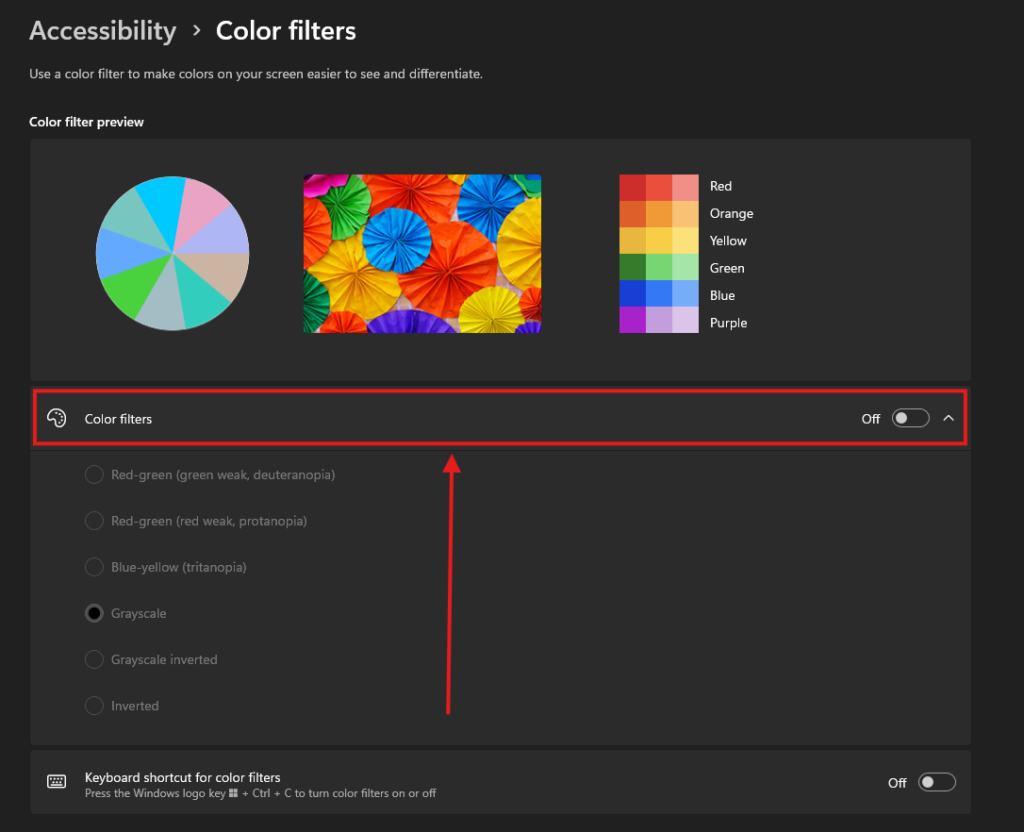
Alternative: Color Filters
For users who need accessibility features:
- Press Windows + U
- Select Color filters
- Turn the feature on
- Choose one of the available filters, such as:
- Grayscale
- Inverted
- Grayscale Inverted
- Red-Green (Deuteranopia)
- Red-Green (Protanopia)
- Blue-Yellow (Tritanopia)
Benefits of Screen Tint
Advantages include:
- Less eye fatigue
- More comfortable reading
- Reduced screen glare
- Better nighttime viewing
- Fully customizable
- Works across all applications
- No third-party software required
Drawbacks
There are some limitations.
- Not available on all Windows versions yet
- Unsuitable for color-sensitive work
- May affect image editing accuracy
- Can make videos look less natural
- Disables Color Filters while active
Tips for Better Eye Comfort
For the best experience:
- Reduce overall screen brightness.
- Use Dark Mode at night.
- Enable Night Light after sunset.
- Take a short break every 20 minutes (the 20-20-20 rule).
- Increase text size if reading is difficult.
- Match your monitor brightness to your room lighting.
Troubleshooting
Screen Tint option is missing
Your Windows version likely doesn’t include the feature yet.
Update Windows or join the Windows Insider Program to access experimental features.
Screen looks too orange
Reduce the Strength slider or choose a lighter tint.
Colors look incorrect
Turn off Screen Tint while editing photos or videos.
Color Filters stopped working
This is expected. Screen Tint and Color Filters cannot be enabled simultaneously.
Is Screen Tint Worth Using?
Yes—for users who spend long hours working on a PC, Screen Tint is a useful addition. It offers more flexibility than Night Light by letting you choose both the color and intensity of the overlay, making it easier to tailor your display to your comfort. However, because it changes the appearance of on-screen colors, it’s not ideal for tasks that require color accuracy, such as photo or video editing.
READ ALSO: How to Disable or Enable Intel DPTF?

 Майкл Уоррен