
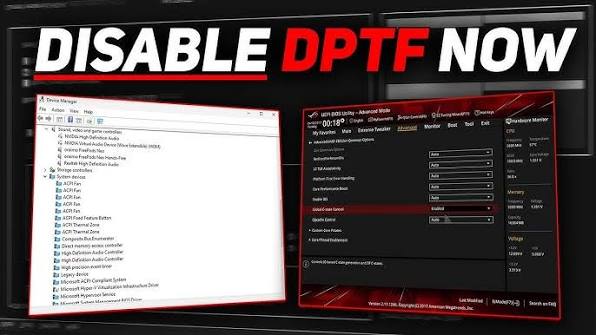
How to Disable or Enable Intel DPTF?
Intel Dynamic Platform and Thermal Framework (DPTF) is Intel’s thermal and power management system found primarily on laptops. Its job is to monitor temperatures, battery status, power consumption, and system workload, then automatically adjust CPU performance to prevent overheating and extend battery life. On newer Intel platforms, DPTF has largely evolved into Intel Dynamic Tuning Technology (DTT) or Intel Innovation Platform Framework (IPF).
While DPTF helps maintain safe operating temperatures, some users disable it to reduce CPU throttling during gaming, content creation, audio production, or benchmarking. However, Intel recommends leaving it enabled because it is part of the laptop’s thermal protection system.
What Happens If You Disable DPTF?
Potential Benefits
✅ Higher sustained CPU clock speeds
✅ Reduced power throttling
✅ Better gaming performance in some laptops
✅ Lower DPC latency for audio production
✅ More control over CPU tuning tools like ThrottleStop or Intel XTU
Community reports show that disabling DPTF can sometimes eliminate aggressive power limits that reduce performance even when temperatures remain reasonable.
Potential Risks
⚠️ Higher temperatures
⚠️ Increased fan noise
⚠️ Reduced battery life
⚠️ Possible thermal throttling from hardware safeguards
⚠️ Potential instability on systems designed around DPTF
Intel specifically warns that disabling DPTF/DTT may result in overheating, reduced battery efficiency, and unexpected behavior.
Method 1: Disable or Enable DPTF in Device Manager
This is the easiest and safest method.
Disable DPTF
- Press Windows + X
- Select Device Manager
- Expand System Devices
- Locate entries such as:
- Intel(R) Dynamic Platform and Thermal Framework Manager
- Intel(R) Dynamic Platform and Thermal Framework Processor Participant
- Intel(R) Dynamic Platform and Thermal Framework Chipset Participant
- Right-click each item
- Select Disable Device
- Restart your computer
Many users report needing to disable all DPTF-related devices rather than only the Manager component.
Enable DPTF Again
- Open Device Manager
- Expand System Devices
- Right-click each disabled DPTF component
- Select Enable Device
- Restart
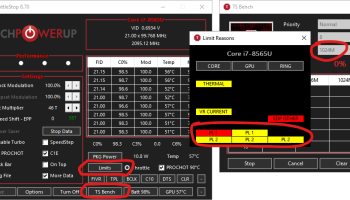
Method 2: Disable DPTF in BIOS/UEFI
Some laptop manufacturers provide a BIOS option.
Common BIOS Names
- Intel DPTF
- Dynamic Platform and Thermal Framework
- Intel Dynamic Tuning
- Intel Innovation Platform Framework
- Thermal Management
- Adaptive Thermal Management
Steps
- Restart your PC
- Enter BIOS (usually F2, Del, Esc, or F10)
- Navigate to:
- Advanced
- Power
- Thermal Configuration
- Locate the DPTF setting
- Change:
- Enabled → Disabled
- Save and exit
Some Dell, Lenovo, MSI, and gaming laptops include this option, while many consumer laptops hide it completely.
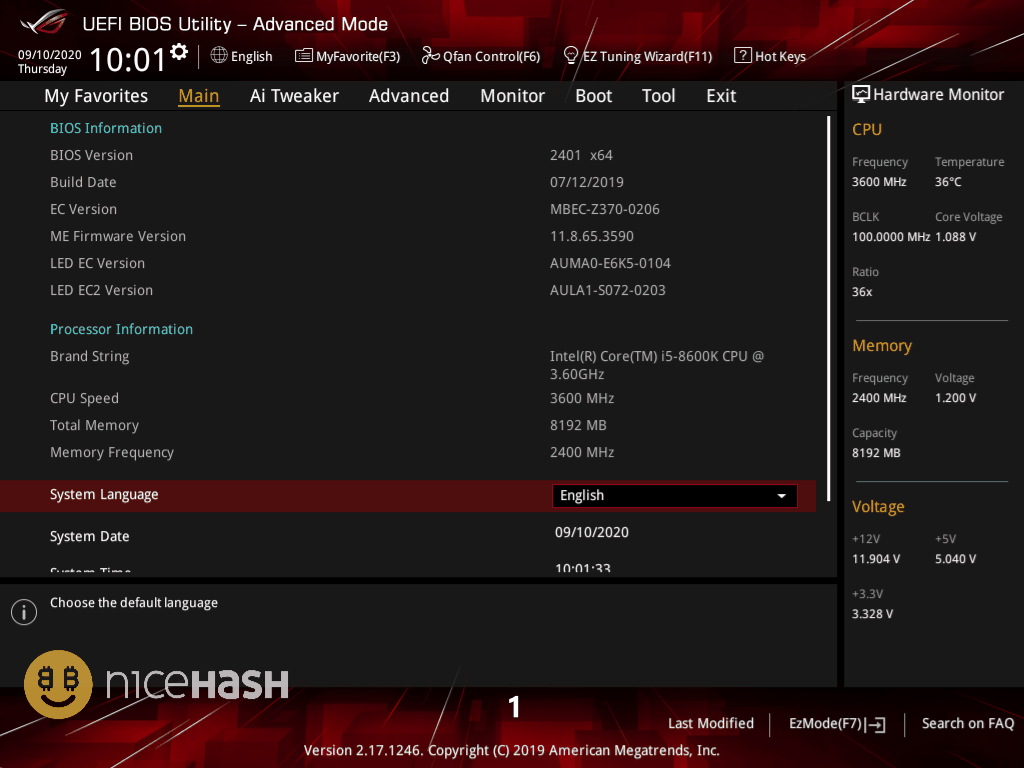
Method 3: Uninstall the DPTF Driver
If Device Manager disabling doesn’t work, you can remove the driver.
Steps
- Open Device Manager
- Expand System Devices
- Right-click each DPTF device
- Select Uninstall Device
- Check Delete the driver software for this device (if available)
- Restart
Important
Windows Update may automatically reinstall DPTF after reboot. Intel and OEMs often push it through Windows Update because it is considered a critical platform component.
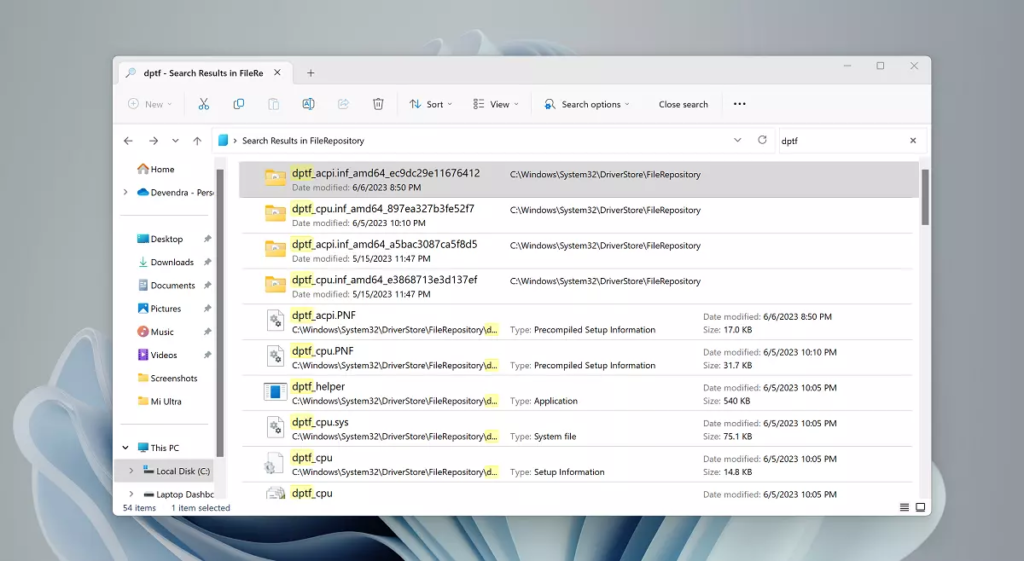
Method 4: Reinstall and Re-enable DPTF
If you’ve removed or disabled DPTF and want it back:
Option 1: Windows Update
- Open Settings
- Windows Update
- Check for updates
- Install available Intel platform drivers
Option 2: OEM Support Site
Download the DPTF/DTT driver directly from:
- Lenovo Support
- Dell Support
- HP Support
- ASUS Support
- Acer Support
- MSI Support
Intel recommends using OEM-provided drivers rather than generic Intel versions.
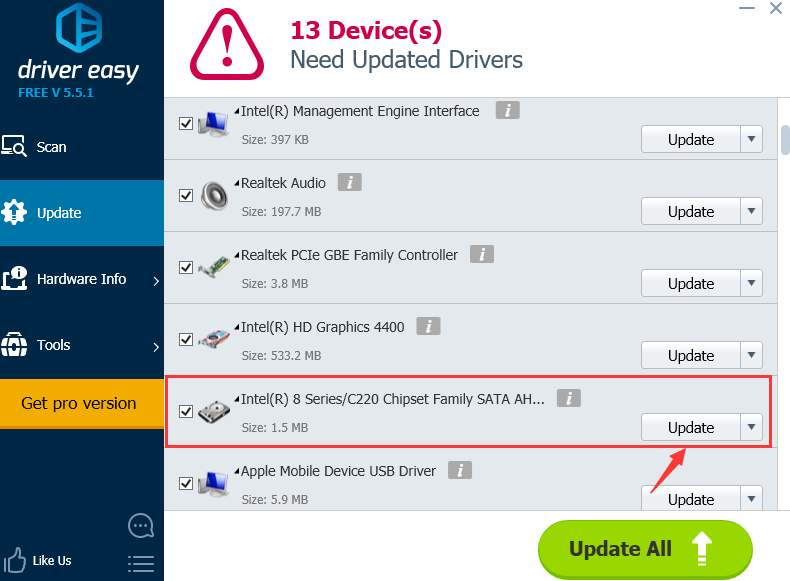
Driver Easy
How to Check if DPTF Is Running
Device Manager
Look under:
Device Manager → System Devices
You should see DPTF, DTT, or IPF-related entries.
Power Options
Some systems display Intel thermal settings inside advanced power options, though newer systems using DTT often no longer expose these settings.
DPTF vs DTT vs IPF
| Technology | Generation | Purpose |
|---|---|---|
| Intel DPTF | Older Intel laptops | Thermal and power management |
| Intel DTT | Modern Intel platforms | Improved thermal optimization |
| Intel IPF | Newest implementation | Framework supporting DTT features |
Intel describes DTT as the successor to DPTF on modern systems.
Should You Disable DPTF?
Disable It If:
- Your laptop aggressively throttles performance
- You use ThrottleStop or Intel XTU
- You produce audio and need lower DPC latency
- You understand thermal management and monitoring
Keep It Enabled If:
- You want maximum system stability
- Battery life is important
- Your laptop already runs hot
- You don’t actively monitor temperatures
For most users, leaving DPTF enabled is the better choice. For gamers, power users, and enthusiasts experiencing unnecessary throttling, testing with DPTF disabled may improve performance—but temperatures should be monitored carefully.
Final Verdict
Intel DPTF is designed to balance performance, temperature, acoustics, and battery life. Disabling it can unlock additional performance on some laptops, especially gaming or workstation models, but it also removes an important layer of thermal management. The safest approach is to disable it temporarily through Device Manager, test performance and temperatures, and re-enable it if stability or heat becomes a concern.
READ ALSO: How to Locate Files That Were Archived?

 Майкл Уоррен