
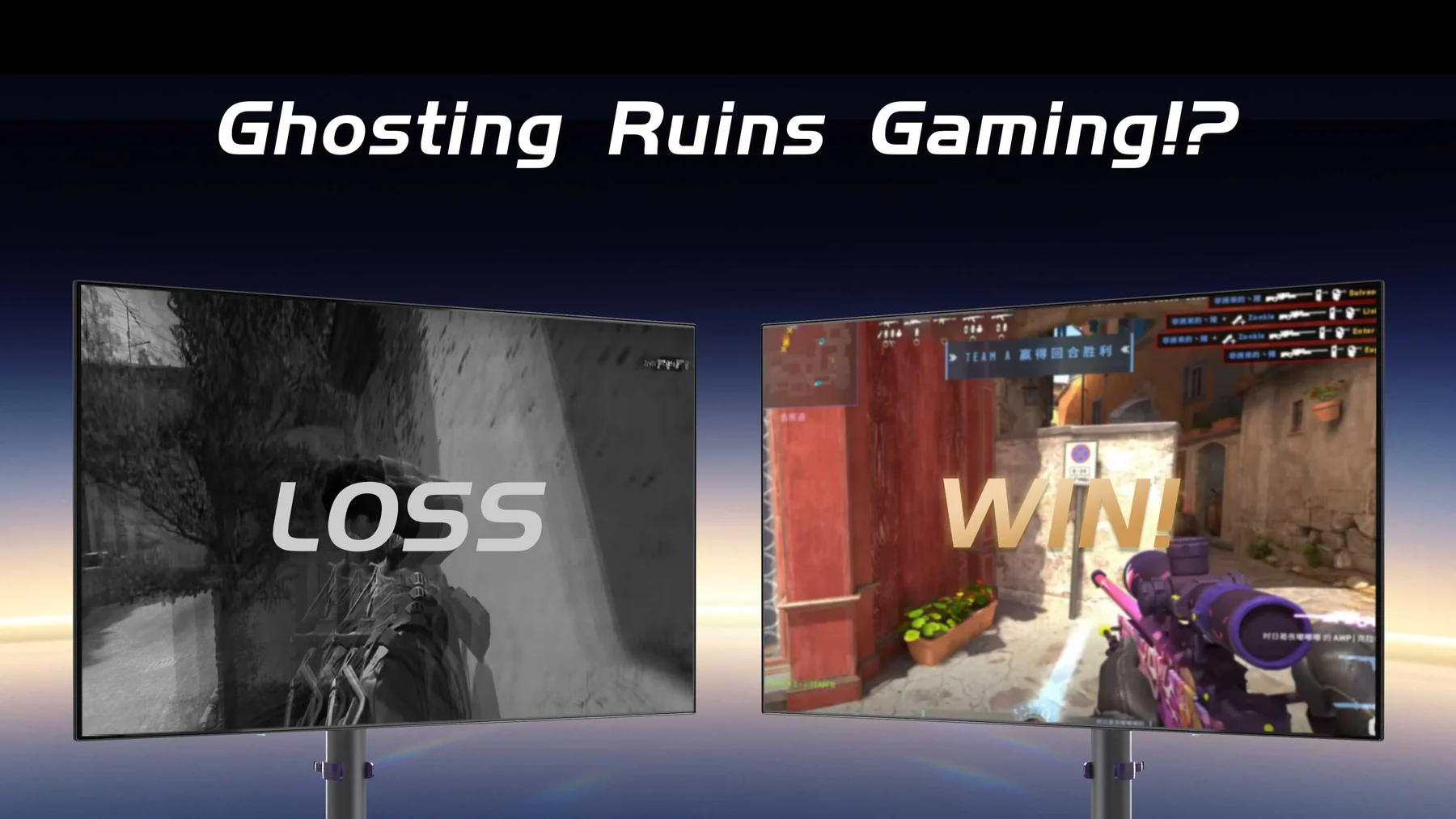
What is Ghosting In Gaming?
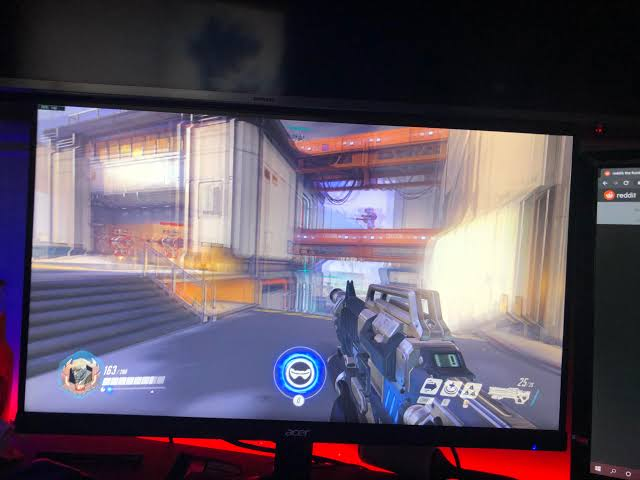
Ghosting in gaming is a display-related visual artifact where moving objects leave faint trails, shadows, or duplicate images behind them. It becomes especially noticeable in fast-paced games such as first-person shooters, racing games, sports titles, and competitive multiplayer games.
If you’ve ever moved your camera quickly and noticed a blurry trail following an enemy, vehicle, weapon, or piece of scenery, there’s a good chance you’re seeing monitor ghosting.
Ghosting doesn’t necessarily mean your monitor is defective. In most cases, it’s related to how quickly the display’s pixels can change from one color to another.
What Does Ghosting Look Like?
Imagine an enemy running across your screen. Ideally, you should see one relatively sharp image of the character as they move.
With ghosting, you may instead see:
Enemy → faint copy → fainter copy → background
The copies aren’t actual additional frames generated by the game. They’re remnants of previous pixel states that haven’t finished transitioning.
Blur Busters describes ghosting as a trailing motion artifact caused by differences in how quickly pixels make particular color transitions.
It can appear as:
- Dark trails behind moving objects
- Bright or colored outlines
- Smearing during camera movement
- Multiple faint copies of an object
- Black trails in dark scenes
- A glowing “halo” following objects
The faster the movement, the easier these artifacts tend to become to see.
What Causes Ghosting in Gaming?
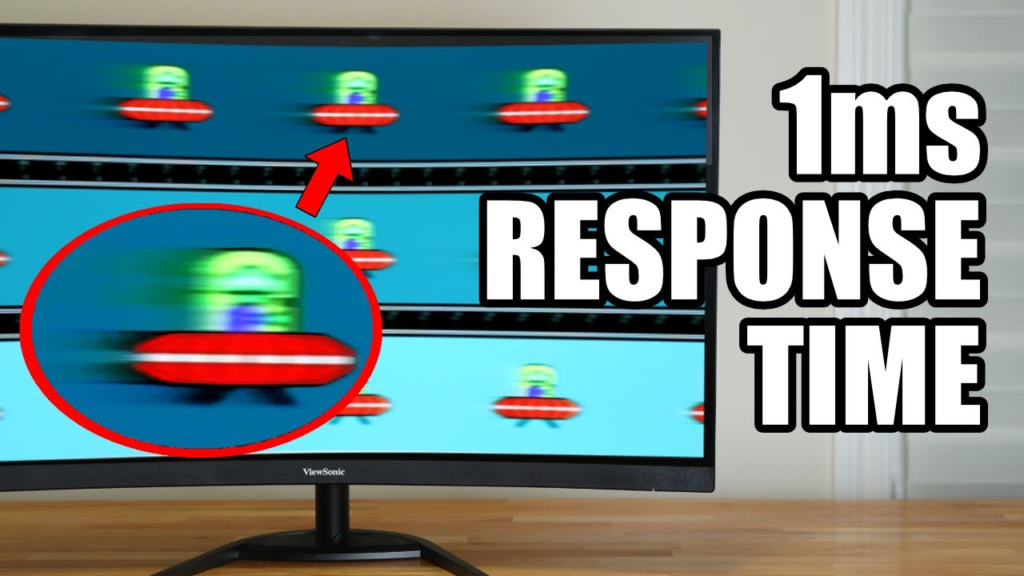
The main cause is pixel response time.
Every pixel on an LCD monitor needs a small amount of time to change from one color or brightness level to another. If the next frame arrives before that transition is sufficiently complete, remnants of the previous image remain visible.
RTINGS defines monitor response time as the amount of time pixels need to switch between colors and notes that slower response times can produce blur or ghosting during fast movement.
For example, suppose you’re playing at 144Hz.
A new refresh occurs approximately every:
1 ÷ 144 = 6.94 ms
If some pixel transitions take considerably longer than the available frame interval, they can spill visually into subsequent refreshes.
That’s why refresh rate alone doesn’t guarantee clear motion.
A 240Hz monitor with poor pixel response characteristics can potentially produce worse-looking motion than a well-tuned lower-refresh-rate monitor.
Ghosting vs. Motion Blur
These terms are frequently confused.
Ghosting usually creates recognizable trails or duplicate-looking outlines behind moving objects.
Motion blur is a broader loss of sharpness during movement.
Some motion blur originates from the display itself, including the sample-and-hold behavior of modern displays, while games may also deliberately add software-based motion blur as a graphical effect.
Therefore, turning off “Motion Blur” in a game’s graphics menu won’t necessarily eliminate monitor ghosting.
What Is Inverse Ghosting?
Here’s where things become slightly more complicated.
Gaming monitors frequently include a feature called Overdrive.
Depending on the manufacturer, you might find it under names such as:
- Overdrive
- Response Time
- OD
- Trace Free
- AMA
- Response Time Compensation
Overdrive applies more aggressive driving to LCD pixels so they reach their target values faster.
That can significantly reduce ordinary ghosting.
But pushing it too far creates another problem.
Overshoot
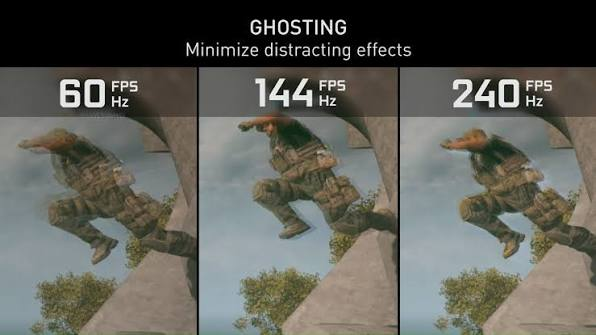
When aggressive overdrive causes a pixel to go beyond its intended value before settling back to the target, the resulting artifact is called overshoot.
Visually, it can produce bright, dark, or strangely colored halos around moving objects.
This is commonly called:
inverse ghosting.
RTINGS notes that stronger overdrive settings can improve initial response speed but also increase overshoot, producing inverse ghosting.
So there’s an important balance:
Too little overdrive → ghosting
Correct overdrive → cleaner motion
Too much overdrive → inverse ghosting
That’s why automatically selecting “Extreme,” “Fastest,” or the equivalent isn’t always the best choice.
Why “1ms Gaming Monitor” Doesn’t Always Mean No Ghosting
This is one of the biggest misconceptions when buying gaming monitors.
Manufacturers commonly advertise:
1ms GtG
or
1ms MPRT
But that doesn’t mean every pixel transition occurs perfectly in one millisecond.
A monitor has many different transitions—for example:
- Black → gray
- Gray → white
- Dark gray → light gray
- Red → gray
Their speeds can vary substantially.
Furthermore, extremely aggressive overdrive modes can sometimes achieve very fast initial transitions while introducing substantial overshoot. RTINGS has demonstrated how aggressive modes can hit very fast response figures yet create obvious inverse ghosting.
Therefore, independent motion testing is usually much more useful than simply comparing advertised “1ms” specifications.
Does Refresh Rate Affect Ghosting?
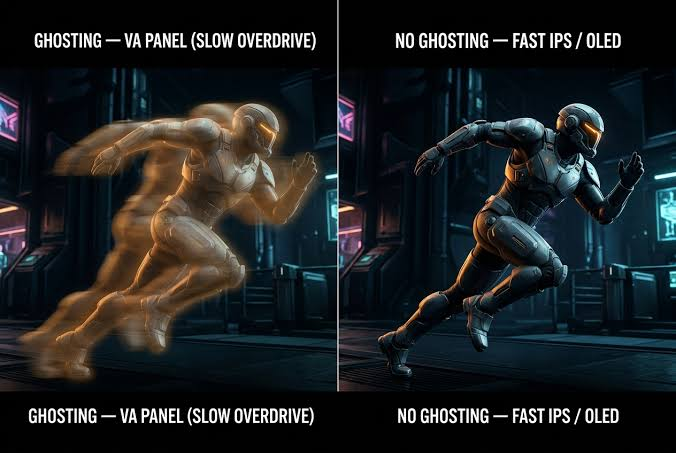
Yes, but refresh rate and response time aren’t the same thing.
Refresh rate determines how frequently the display presents a new refresh.
Typical intervals are approximately:
| Refresh Rate | Time per Refresh |
|---|---|
| 60Hz | 16.67 ms |
| 75Hz | 13.33 ms |
| 120Hz | 8.33 ms |
| 144Hz | 6.94 ms |
| 165Hz | 6.06 ms |
| 240Hz | 4.17 ms |
| 360Hz | 2.78 ms |
Higher refresh rates can make motion look smoother and clearer, but the pixels still need to transition quickly enough to keep up.
RTINGS therefore evaluates both response behavior and refresh-rate performance rather than assuming high Hz automatically equals excellent motion clarity.
Which Panel Types Have the Most Ghosting?
Panel technology matters, although individual monitor performance matters even more.
VA
Traditional VA LCD monitors are particularly known for dark-level smearing.
Certain transitions involving very dark shades can be much slower than others, producing noticeable black trails.
This can become especially obvious in dark games—for example, when looking around inside caves, nighttime environments, or dark buildings.
RTINGS notes that VA panels typically have slower dark transitions than IPS and TN displays, which can lead to black smearing.
That doesn’t mean every VA monitor is bad. Modern high-performance VA implementations can be substantially better.
IPS
Modern gaming IPS monitors generally offer a good compromise between:
- Response time
- Color reproduction
- Viewing angles
- Motion clarity
IPS displays can still ghost, particularly when their overdrive implementation isn’t good.
However, they generally don’t suffer from the same characteristic dark smearing seen on slower VA panels.
TN
TN has traditionally been popular for competitive gaming because of its fast pixel response.
Its weaknesses tend to involve image quality, viewing angles, and color performance rather than motion speed.
OLED
OLED is in another league when it comes to pixel response.
Because OLED pixels can change state extremely quickly, pixel-transition ghosting is dramatically reduced compared with conventional LCD technology.
RTINGS currently characterizes OLED as offering the strongest overall motion handling, followed generally by TN, IPS, and VA, although individual displays can vary.
OLED still isn’t completely immune to perceived motion blur, however. Sample-and-hold persistence means motion can still appear blurry depending on frame rate, refresh rate, and eye movement.’
Is Ghosting Bad for Competitive Gaming?
Potentially, yes.
In slower games such as:
- Civilization
- The Sims
- Turn-based RPGs
- Strategy games
minor ghosting might barely matter.
But in games such as:
- Counter-Strike 2
- Valorant
- Call of Duty
- Fortnite
- Apex Legends
- Overwatch
- Rocket League
- Racing simulators
motion clarity becomes considerably more important.
When you’re rapidly tracking another player, excessive trailing can make their outline harder to distinguish from the background.
It doesn’t necessarily increase input lag, but it can reduce visual clarity, which can indirectly make tracking targets more difficult.
How to Test Your Monitor for Ghosting
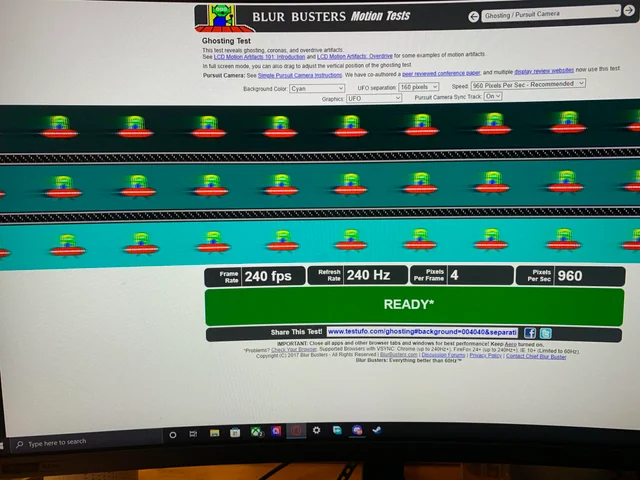
One of the easiest approaches is the Blur Busters/TestUFO ghosting test.
It displays moving UFOs against different backgrounds so you can inspect the trails behind them.
Blur Busters also uses this type of testing to demonstrate the difference between ordinary ghosting and overdrive-induced artifacts.
When testing, look for a clear trailing image behind the moving UFO.
Then change your monitor’s overdrive setting and repeat the test.
You might see something like:
Off: lots of trailing
Normal: much cleaner
Fast: cleanest result
Extreme: bright inverse trail
In that example, Fast would be preferable to Extreme.
How to Fix Ghosting in Games
The first thing to try is your monitor’s overdrive setting.
Open the monitor’s built-in menu and look for something labeled Response Time, Overdrive, OD, Trace Free, AMA, or similar.
Don’t automatically choose the maximum setting.
Try:
Off → Normal → Fast → Faster/Extreme
and inspect motion after every change.
The ideal setting is usually the fastest option that doesn’t introduce noticeable overshoot. RTINGS similarly recommends balancing response speed against overshoot rather than simply selecting maximum overdrive.
You should also make sure Windows and the GPU are actually running the monitor at its maximum intended refresh rate. A 165Hz monitor accidentally configured for 60Hz isn’t going to provide the motion experience you bought it for.
Can FreeSync or G-SYNC Cause Ghosting?
Not directly, but VRR can expose another issue.
With variable refresh rate, your monitor may operate across a large range—for example:
55 FPS → 90 FPS → 144 FPS
The optimal overdrive strength can change with refresh rate.
A setting that looks excellent at 165Hz may produce overshoot at 60Hz.
Better gaming monitors compensate for this behavior more effectively, while others require choosing an overdrive mode that represents a compromise across the VRR range.
This is one reason good monitor reviews test response behavior at multiple refresh rates rather than only at the display’s maximum refresh rate. RTINGS, for example, measures response characteristics at maximum refresh, 120Hz, and 60Hz where applicable.
Ghosting vs. Other Gaming Monitor Problems
It’s useful to distinguish ghosting from several similar-looking issues.
| Problem | What You See | Typical Cause |
|---|---|---|
| Ghosting | Trails behind moving objects | Slow pixel transitions |
| Inverse ghosting | Bright/dark halos | Excessive overdrive |
| Black smearing | Dark trails | Slow dark transitions, often VA |
| Motion blur | General loss of clarity during movement | Pixel response/persistence/game effects |
| Screen tearing | Horizontal split in the image | FPS and refresh synchronization |
| Stutter | Uneven/jumpy movement | Frame pacing/FPS |
| Input lag | Delayed response to controls | Processing/rendering/display latency |
| Image retention | Image remains after it stops moving | Temporary panel retention |
These problems can occur simultaneously, which is why players sometimes describe almost any motion artifact as “ghosting.”
Does Ghosting Mean Your Monitor Is Bad?
Not necessarily.
Virtually every LCD has some transition limitations.
The important question is how noticeable they are during actual gameplay.
Minor trails visible only during synthetic tests aren’t necessarily worth worrying about.
But if you regularly notice smearing when turning the camera or tracking enemies, then the monitor’s motion performance may genuinely be limiting your experience.
What Should You Look for When Buying a Gaming Monitor?
Don’t judge a monitor purely by claims such as:
“240Hz / 1ms Gaming Monitor.”
Instead, look for independent measurements covering:
Pixel response across many transitions
Overshoot/inverse ghosting
Performance at maximum refresh
Performance around 120Hz and 60Hz
VRR performance
Recommended overdrive setting
Dark-level response
This is particularly important with high-refresh LCDs because a high refresh rate doesn’t automatically guarantee that the panel transitions fast enough to take full advantage of it.
Final Verdict: How Important Is Ghosting?
Ghosting is one of the most important—but frequently misunderstood—aspects of gaming-monitor performance.
For casual gaming, a small amount of ghosting probably won’t matter much. But for competitive FPS, racing, and other fast-motion games, strong response performance can make movement look substantially cleaner.
The key takeaway is simple:
Refresh rate tells you how frequently the monitor can refresh. Response behavior tells you how cleanly its pixels can actually keep up.
For an LCD gaming monitor, the sweet spot is generally a fast panel combined with a well-tuned overdrive mode that reduces trailing without introducing inverse ghosting. OLED largely eliminates the slow pixel-transition problem and currently provides exceptionally strong motion performance, though refresh rate and persistence still influence perceived clarity.
If you’re troubleshooting ghosting on an existing monitor, start with overdrive/response-time settings, maximum refresh rate, and TestUFO before assuming the monitor needs replacing.
READ ALSO: How to Disable or Enable Intel DPTF?

 Майкл Уоррен