
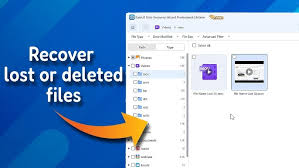
How to Locate Files That Were Archived?
What Does “Archived” Mean?
An archived file is usually:
- Hidden from normal view
- Moved to a storage folder
- Compressed into an archive format
- Stored in long-term backup storage
Unlike deleted files, archived files are often still intact and recoverable.
Common archive formats:
- ZIP
- RAR
- 7Z
- TAR
- GZ
Common archive locations:
- “Archive” folders
- Backup drives
- Cloud storage archives
- Email archive sections
- Hidden system folders
How to Locate Archived Files on Windows
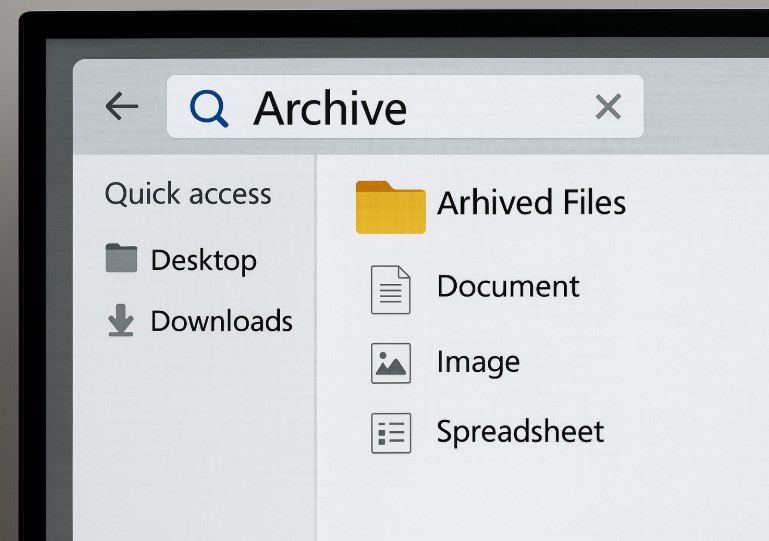
Method 1: Search File Explorer
Open File Explorer and search for:
.zip.rar.7z.bak.old
Example:
*.zipYou can also search by:
- File name
- Date modified
- File type
- Size
Method 2: Check Hidden Folders
Enable hidden items:
- Open File Explorer
- Click View
- Enable Hidden items
Archived files may be inside:
- AppData
- Temp folders
- Backup folders
Method 3: Check Backup & Restore
Open:
Control Panel → Backup and RestoreOr:
Settings → Update & Security → BackupLook for:
- File History
- OneDrive backups
- System images
Method 4: Use Windows Search Index
Press:
Windows + SSearch:
- file extension
- keywords
- archive folder names
How to Locate Archived Files on Mac
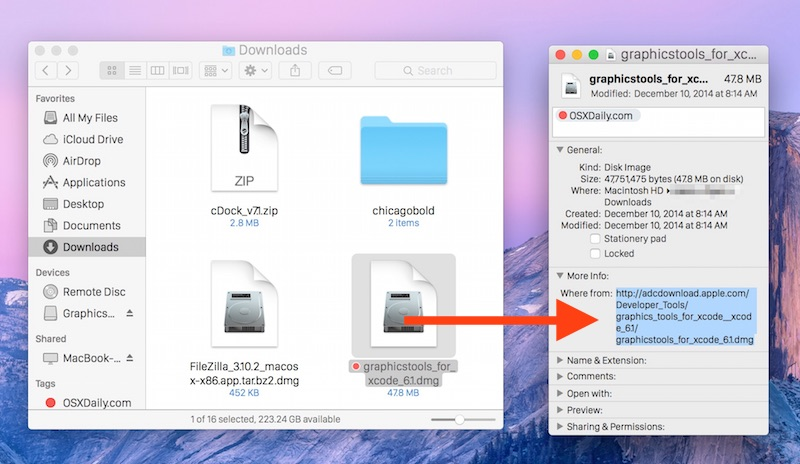
Finder Search
Open Finder and search:
.zipOr use:
Kind → ArchiveCheck Archive Utility Locations
macOS often extracts archives into:
- Downloads
- Desktop
- Same folder as original archive
Time Machine Backups
If the file was archived during backup:
- Open Time Machine
- Browse previous snapshots
- Restore archived versions
How to Locate Archived Files on Android
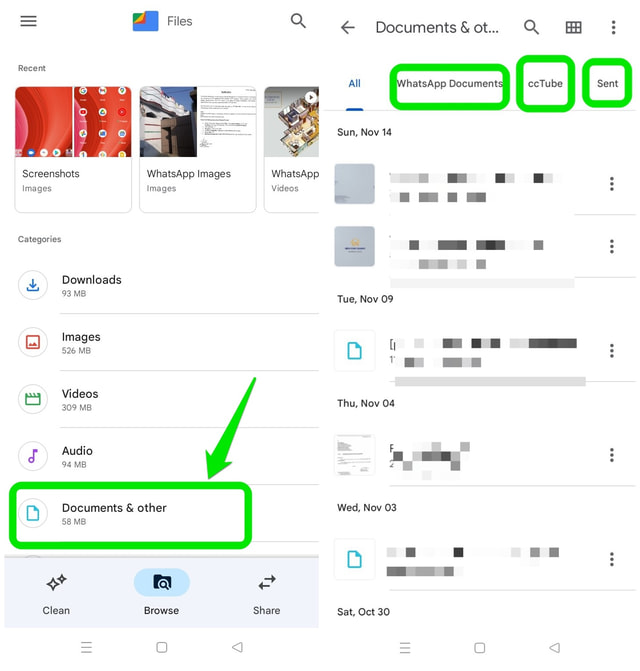
Files App
Open:
- Files by Google
- Samsung My Files
- Device File Manager
Search:
- ZIP
- Downloads
- Archives
Messaging App Archives
Some apps archive media automatically:
- Telegram
- Google Photos
Check:
- Archived chats
- Hidden folders
- Cloud backup sections
How to Locate Archived Files on iPhone/iPad
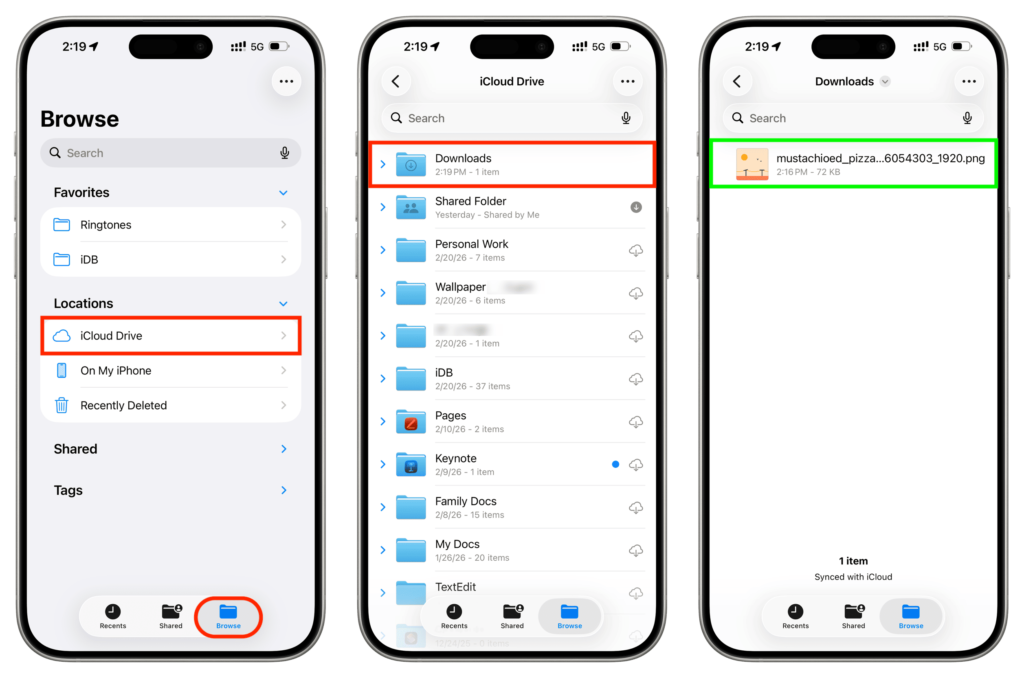
Use the Files app:
- Open Files
- Tap Browse
- Search file names or extensions
Check:
- iCloud Drive
- Recently Deleted
- Downloads
Finding Archived Emails
Most email services have archive folders.
Gmail

Open:
Gmail
Then:
- Click “All Mail”
- Search keywords
- Use:
in:archiveOutlook
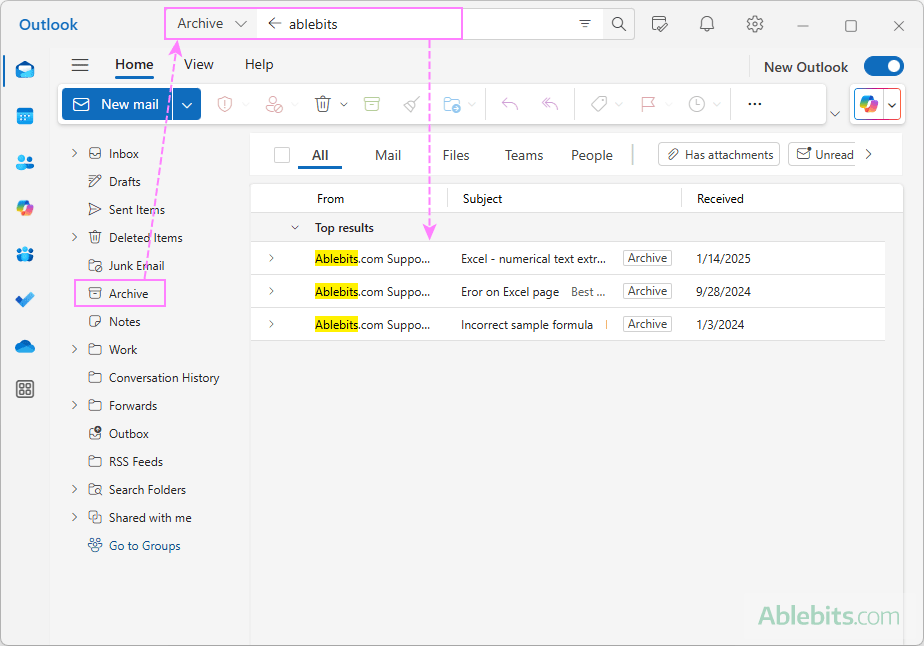
Open:
Microsoft Outlook
Check:
- Archive folder
- Online Archive
- AutoArchive folders
Finding Archived Files in Cloud Storage
Google Drive
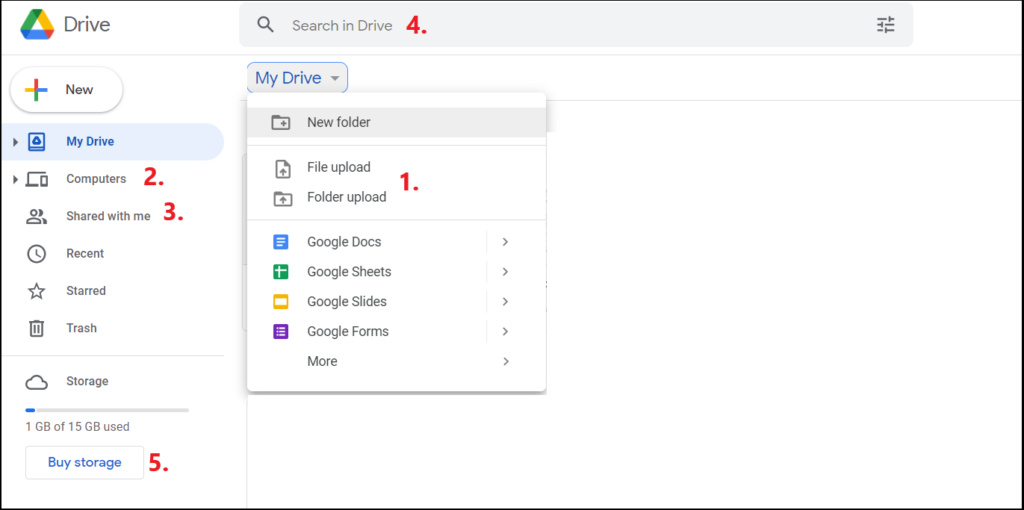
Open:
Google Drive
Search:
- ZIP
- Archived folder names
- File type filters
Dropbox

Open:
Dropbox
Check:
- Deleted files
- Backup section
- File history
OneDrive
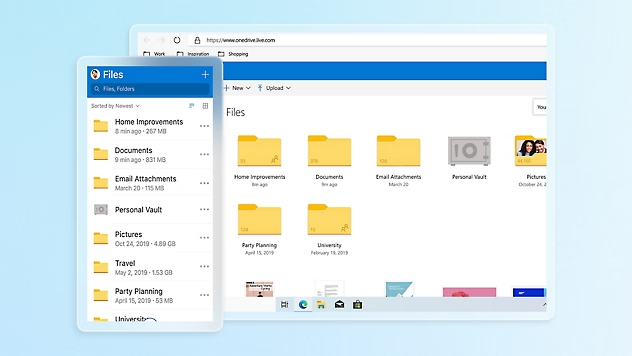
Open:
Microsoft OneDrive
Look in:
- Vault
- Backup folders
- Recycle Bin
How to Open Archived Files
ZIP Files

Windows and macOS support ZIP natively.
Double-click:
file.zipRAR and 7Z Files

Recommended tools:
These support:
- Password-protected archives
- Multi-part archives
- Large compressed files
Best Archive Search Tools
Everything Search Engine

Pros
- Extremely fast
- Lightweight
- Great for Windows
Cons
- Windows only
7-Zip

Pros
- Free
- Opens most archive types
- Very reliable
Cons
- Interface feels old
WinRAR

Pros
- Excellent RAR support
- User-friendly
Cons
- Trial reminders never stop
Common Reasons Archived Files “Disappear”
| Cause | Explanation |
|---|---|
| Hidden folders | Archive stored in hidden directory |
| Cloud sync issue | File exists online but not locally |
| Wrong extension | File renamed accidentally |
| Corrupted archive | Archive damaged |
| Different user account | File stored under another profile |
| Backup-only storage | File exists only in backup snapshot |
How to Recover Missing Archived Files
Try Recent Files
Check:
- Downloads
- Desktop
- Documents
- Recent Items
Use File Recovery Software
Popular options:
These may recover:
- Deleted ZIP files
- Lost archives
- Corrupted compressed files
Archive vs Delete
| Feature | Archive | Delete |
|---|---|---|
| Still stored | Yes | Usually removed |
| Searchable | Usually | Often no |
| Recoverable | Easy | Sometimes difficult |
| Saves space | Sometimes | Yes |
| Hidden from main view | Yes | Yes |
Pros and Cons of Archiving Files

Pros
- Can compress large files
- Useful for backups
- Preserves old data
- Reduces clutter
- Keeps files organized

Cons
- Archives may corrupt
- Password-protected files can be inaccessible
- Some cloud archives sync poorly
- Easy to forget location
Best Practices
Use Clear Folder Names
Examples:
- Archive_2025
- Old Projects
- Backup Photos
Keep Multiple Backups
Use:
- External drives
- Cloud backups
- Local copies
Avoid Proprietary Archive Formats
ZIP is safest for long-term compatibility.
Final Verdict
Archived files are usually recoverable — the challenge is identifying:
- Where the archive was created
- Which app or service manages it
- Whether it’s compressed, hidden, or cloud-stored
For most users:
- Windows: use Everything Search Engine
- Mac: Finder + Time Machine
- Cloud storage: check file history and archived sections
- Compression: use 7-Zip
If you want, I can also help with:
- finding archived files on a specific device,
- recovering corrupted ZIP/RAR archives,
- locating archived chats/photos,
- or explaining hidden archive folders in Windows or Android.
READ ALSO: What are the Internet Explorer flags and what are they for?

 Майкл Уоррен